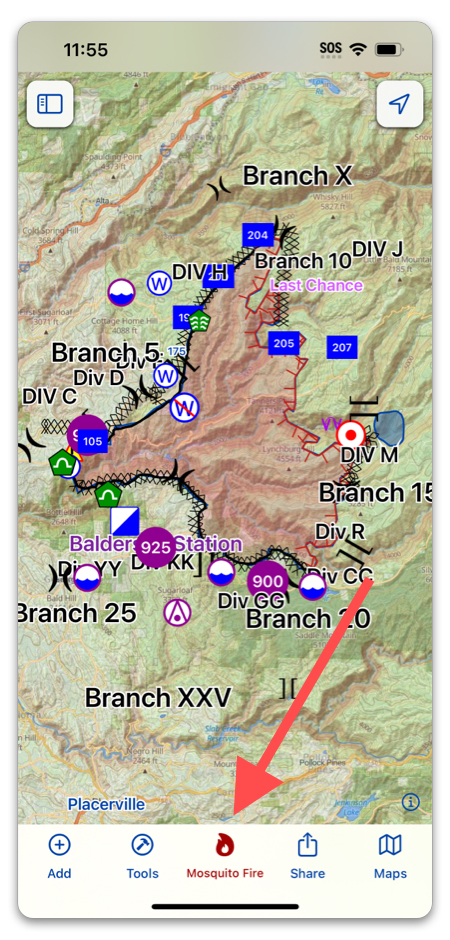
Incidents are the core function of Topo Fire. They act as a living map of an event, where anyone invited to the incident can view updated data, as well as add their own. Every time someone in the incident syncs their device after creating data, it will upload it to the cloud and update on each member’s device as soon as they sync again.
This means you can add data to the incident at any point—even offline—and upload your additions as soon as you have internet. If your crew doesn’t all use Topo Fire, you can always export data files to them to view in another mapping app.
To view/create incidents, simply tap the Incident button in the toolbar:
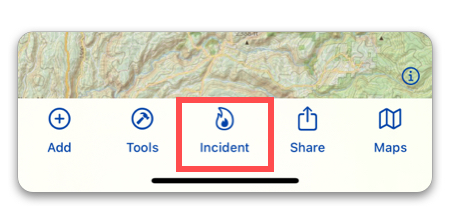
Before you are a part of any active incidents, here is what you will see:
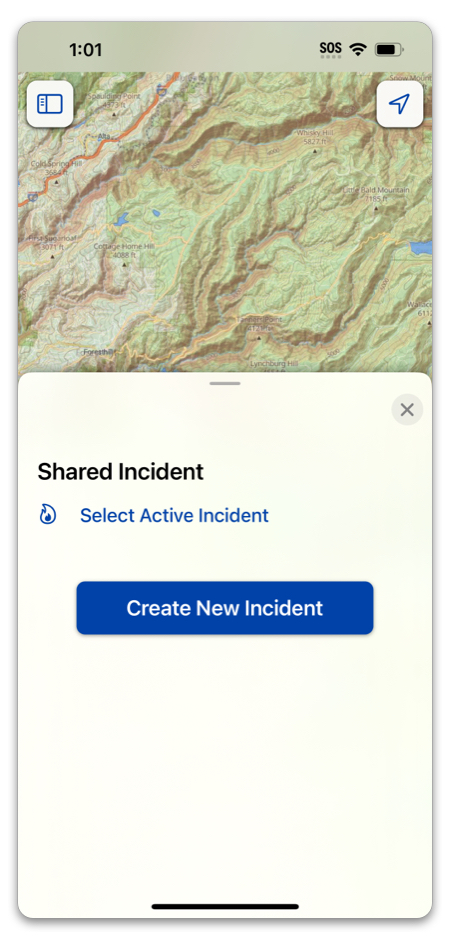
From here you can either select an incident you are already a part of, or create your own.
When you create an incident, you will see a prompt to invite members to the incident. You can skip this step at creation if you don’t need to invite anyone yet. You can always invite people later. To learn more about inviting collaborators, go here.
When you have created an incident, it will by default become your “selected” incident. This means any data you create will automatically be a part of the incident, and only accessible within the incident. To change or deselect an incident, simply tap “Change Incident”:
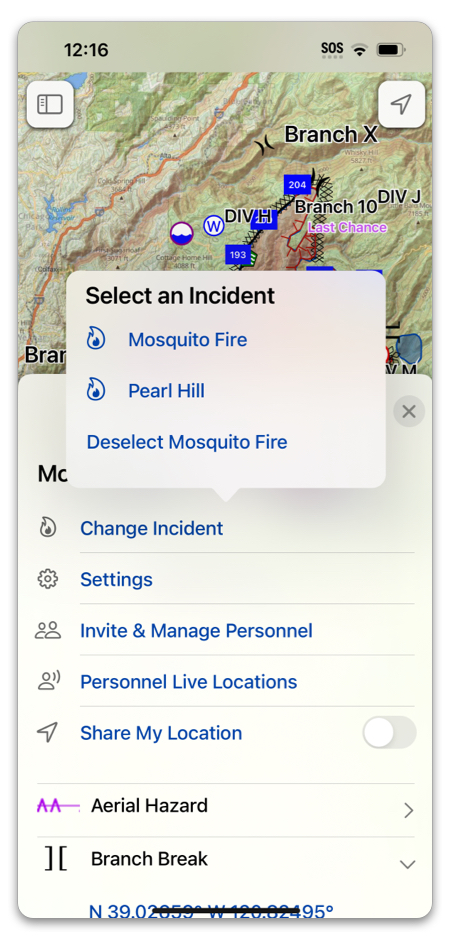
In an incident’s menu, you will find settings, actions, as well as all of the data that has been saved to the incident, categorized by the name of the symbol used. Tapping a category will show all of the individual items created within that category.
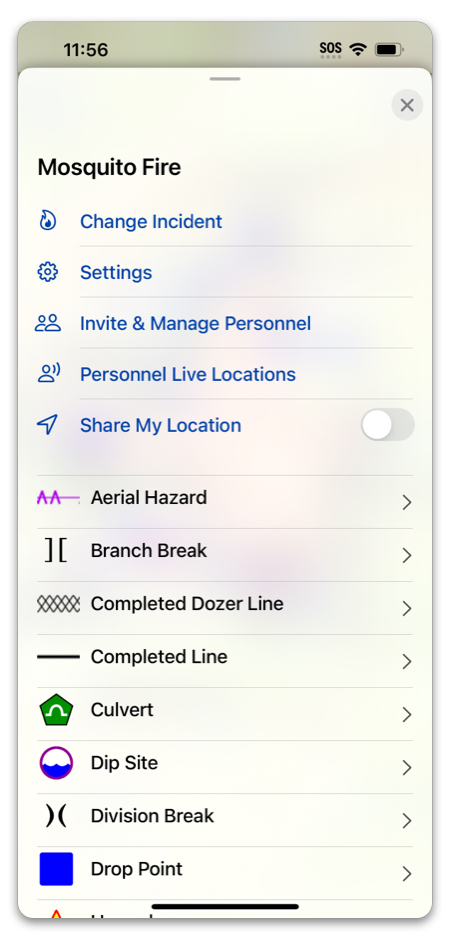
Tapping “Settings” will bring up the incident settings:
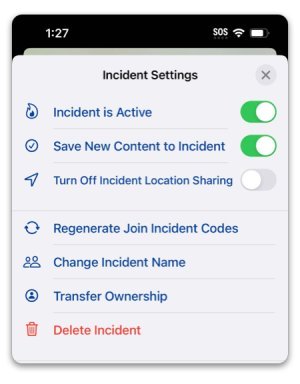
Incident Settings:
- Active/Inactive: Toggles off the incident, closing it off to additional data. To open an inactive incident again, simply toggle this back on.
- Save New Content to Incident: Toggling this on or off will change whether or not new data created will go to this incident. While off, data will go to “Private Data” instead of an incident.
- Turn Off Incident Location Sharing: By default, members of an incident can show their live location to other members, but this will turn that feature off.
- Regenerate Join Incident Codes: If you invited people to the incident by generating invite codes, you can come here to regenerate them.
- Change Incident Name: Changes the name of the incident.
- Transfer Ownership: Give someone else Ownership of the incident.
When an incident is active, the Incident button in the toolbar will be highlighted red and the name of the incident will display under the button: