With Topo Maps+ you can not only create and follow the routes you make pre-hike, but you can also record them in real time with “Record Tracks.”
Maybe you want to see how much elevation you’ve gained, or what your average/max/minimum speed is, or your current compass bearing. This tool takes the math out of it for you.
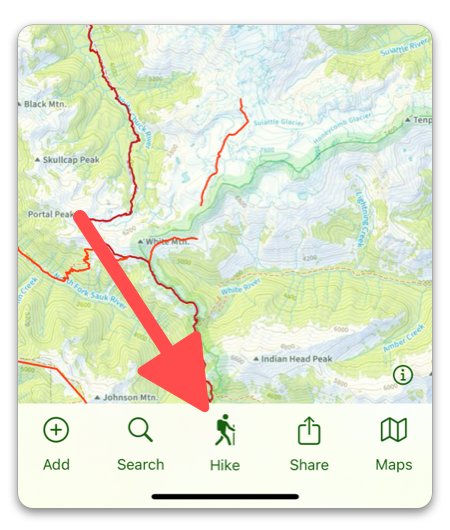
To start recording simply tap on Hike in the toolbar, then Record Track in the Hike Card.
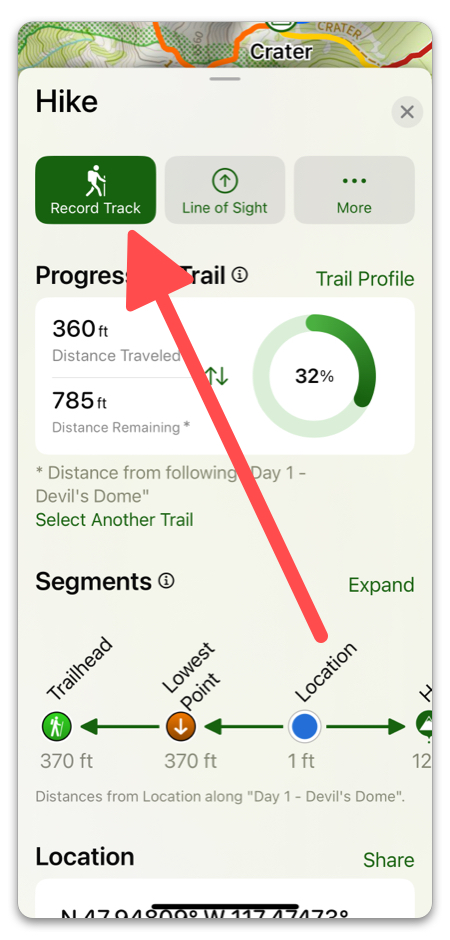
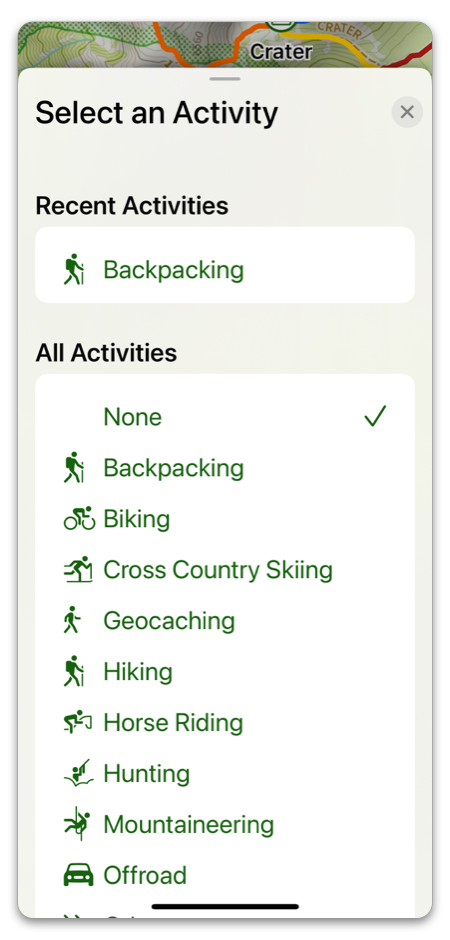
You’ll be prompted to select the appropriate activity for your recording, which you can change at any point during recording by tapping More -> Change Track Activity:
While recording, you’ll see your current stats below:
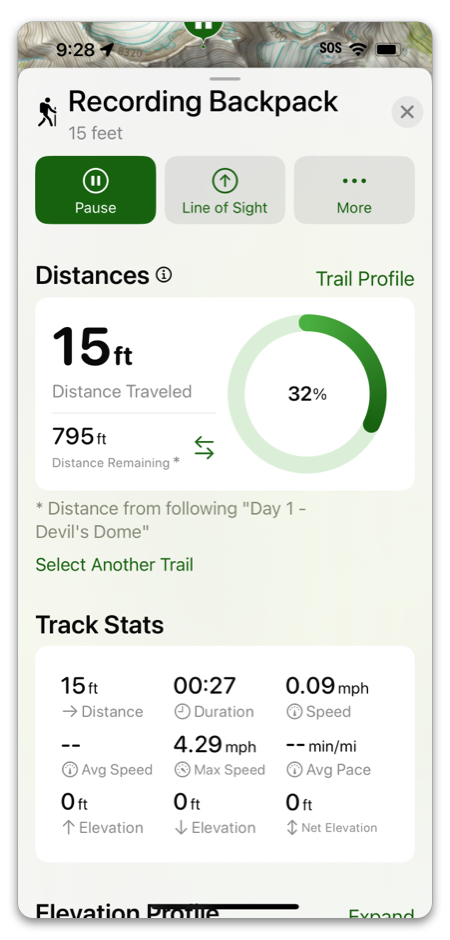
When you tap on “Pause” you have the option to either resume the same track or stop it completely.
Note: Once you press STOP, you will no longer be able to add on to that track. Make sure you’re done recording!
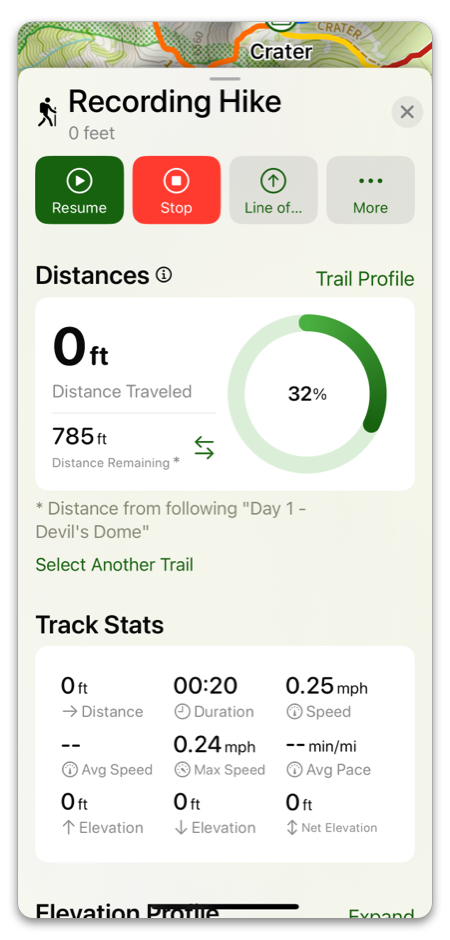
Hitting “Stop” will allow you to start a new track or you can even resume any previous track that is less than 24hrs old by tapping on it and hitting “Resume.”
You can also turn any track into a route by tapping Edit -> Create Route from Track.
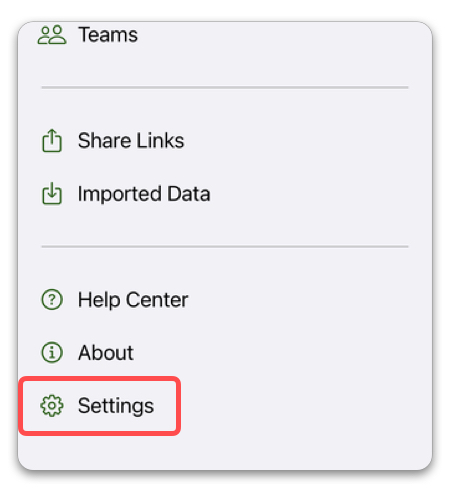
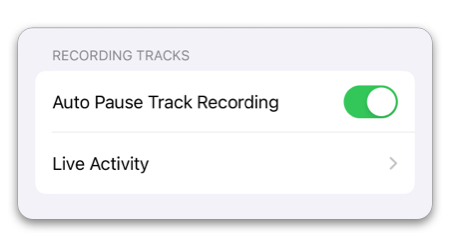
If you don’t want the track to keep recording while you stop on the trail for water, or to admire the view, go to settings and scroll down to Auto Pause Track Recording and toggle it on. After your speed has dropped to 0 for a few seconds, the track will pause until you start walking again.
Live Activity:
Recording a track will show a Live Activity on your Lock Screen that displays metrics like distance traveled, duration, speed, etc. You can configure these settings with the Live Activity setting entry. For more details, see this article.