There are many ways to customize your map view in Topo Maps+.
Any layer you add to your base map is called an overlay.
Each overlay adds data or graphic images on top of whatever base map you choose:
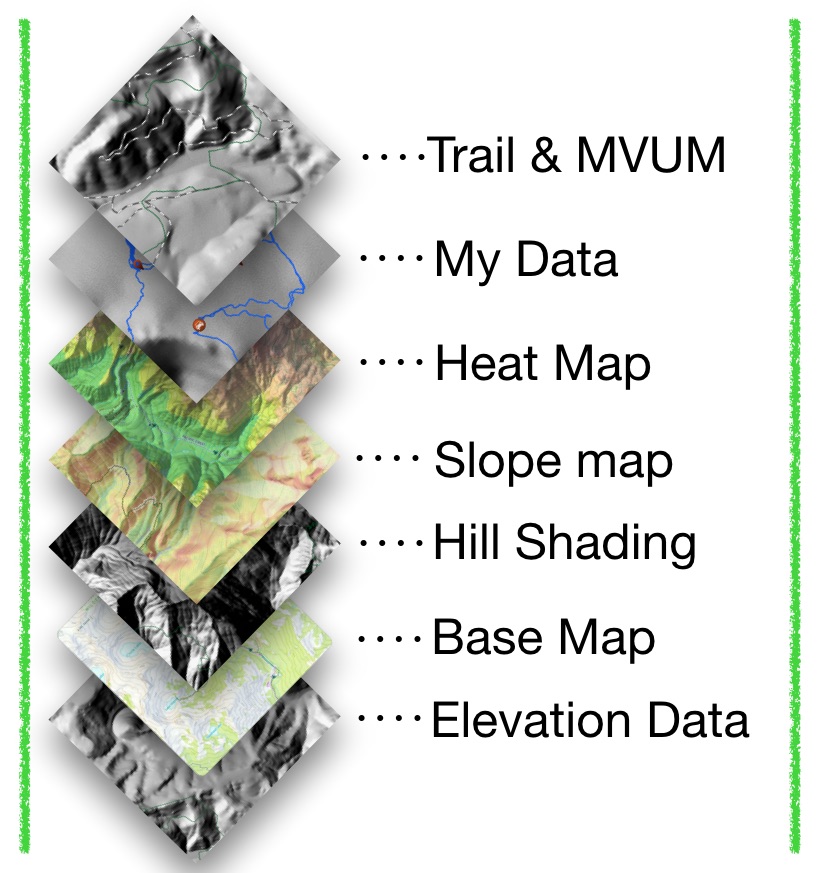
Exploring Advanced Map Features:
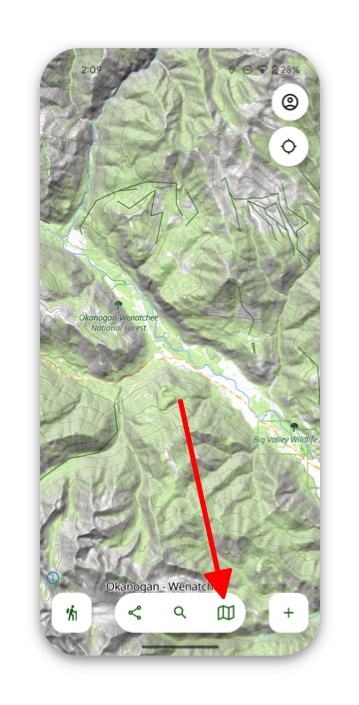
- Tap on the Maps icon at the bottom of the screen.
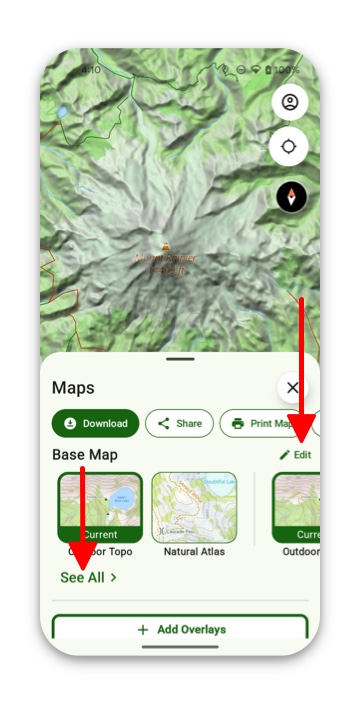
2. Here you will have to select a base map.
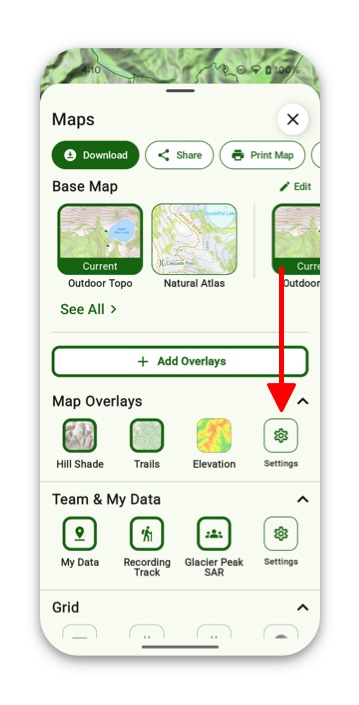
You can customize what maps show up here by tapping the Edit button, or by tapping See All which will bring you to the full list of maps to choose from.
3. Beneath the base maps is the Overlay section, which lets you toggle overlays you have selected or are already there by default.
All the overlays you have toggled on will show up with an image, which you can then tap on to display them on the map or not. (They are active when they have a green border). To add more overlays tap Settings under the Map Overlays section.
4. Turn on any overlay you want to display in your Map Overlay Dashboard. Enabling an overlay automatically adds it to the dashboard and turns it on. You can tap it in the dashboard to turn it off, or go back to settings to remove it completely.
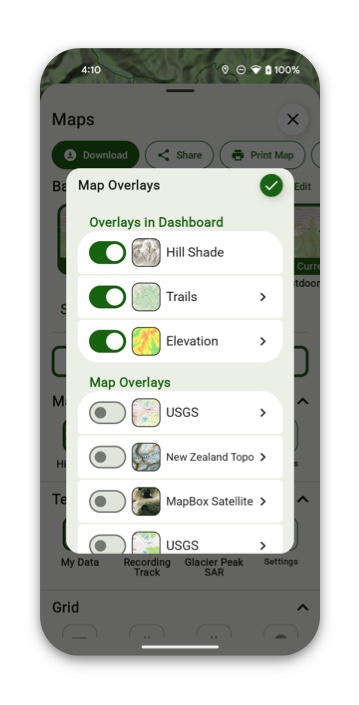
5. All of these changes you make will automatically save to that current map view.