Topo Maps+ allows you to import external maps (they must be geo-tagged) and add them to your map library in the app.
First, you’ll need to have the file downloaded to your iOS Files app. You can email it to yourself, download directly from the website hosting it, or grab it from your iCloud files.
Once the geo-tagged file is on your device, open Topo Maps+ on your iOS and follow these steps:
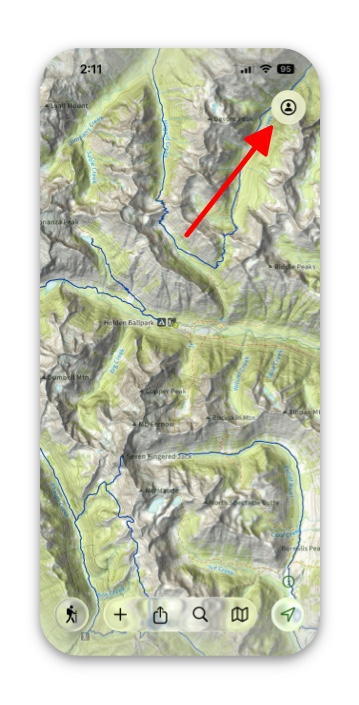
- Tap the Menu button in the top right corner of the screen.
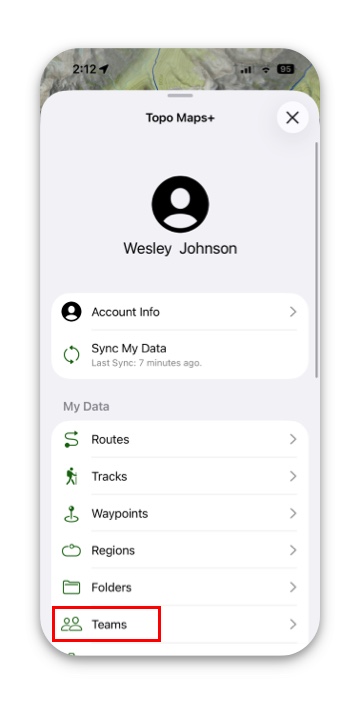
2. Scroll down and tap Teams.
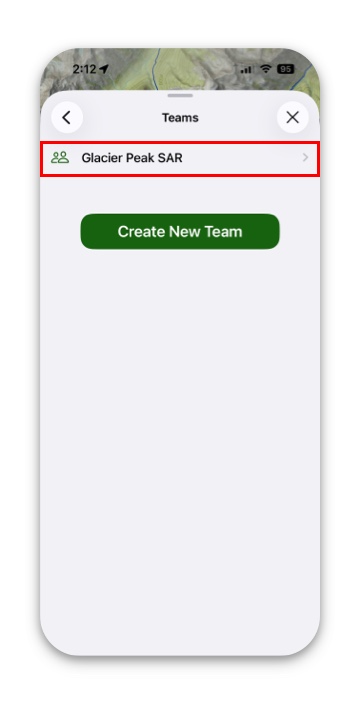
3. Select the team you want to share with.
4. Then tap Team Maps.
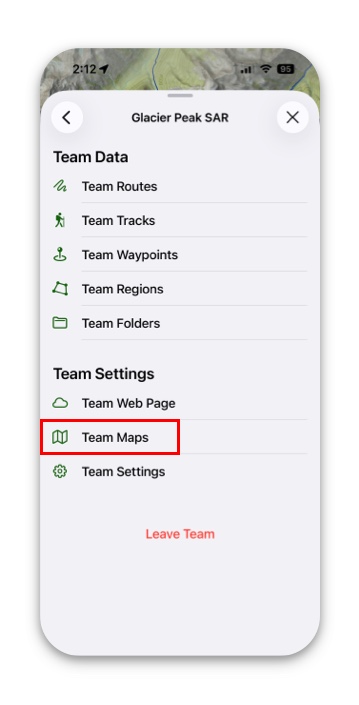
5. Next tap Import Map for Team.
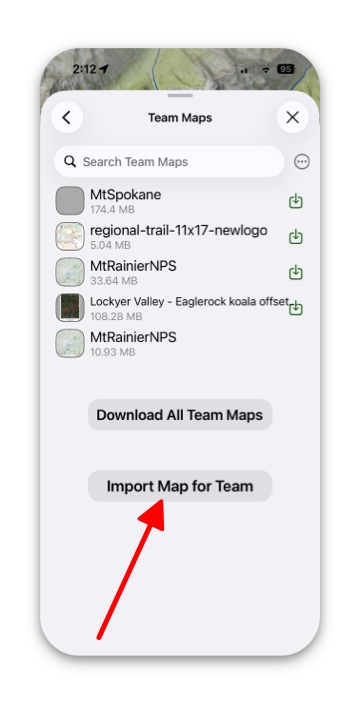
6. Then select which map you would like to import.
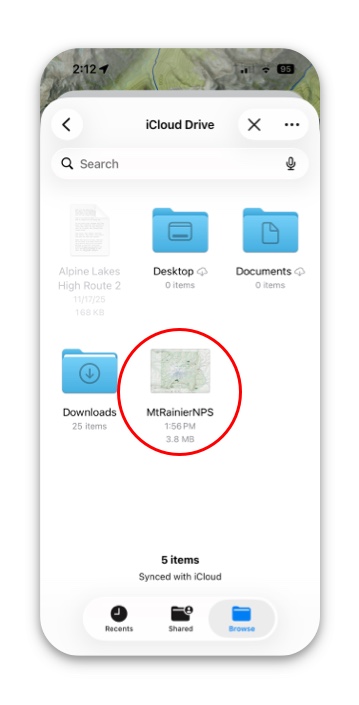
7. Next tap Import Map.
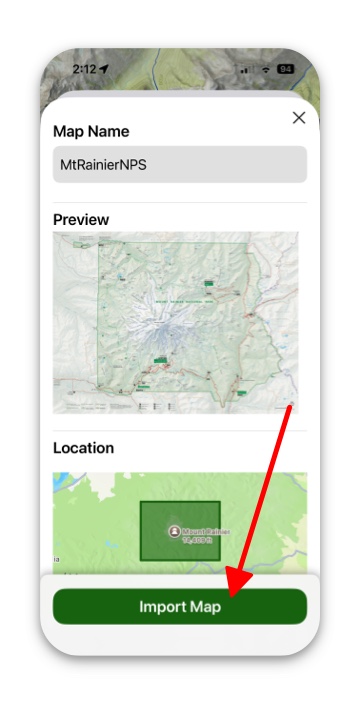
8. After that, then your selected imported map will be displayed under the team’s data.
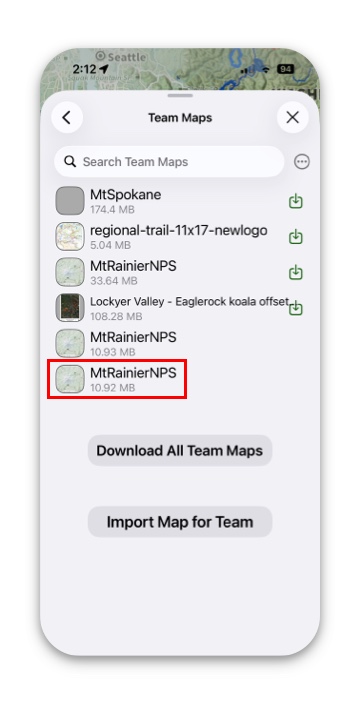
Now on the Android device:
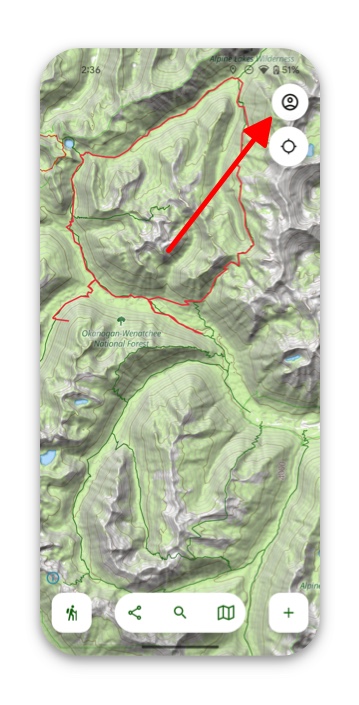
- Tap the Menu button in the top right corner of the screen.
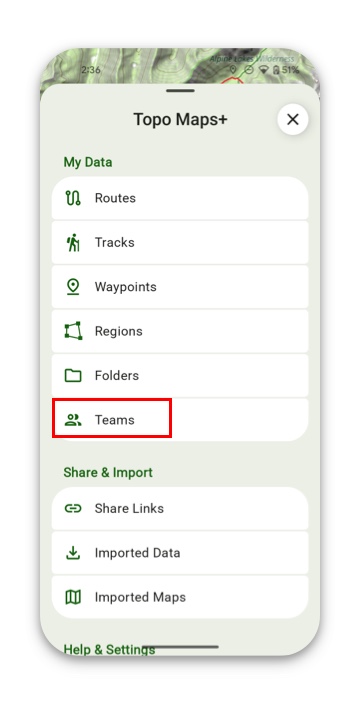
2. Next scroll down and tap Teams.
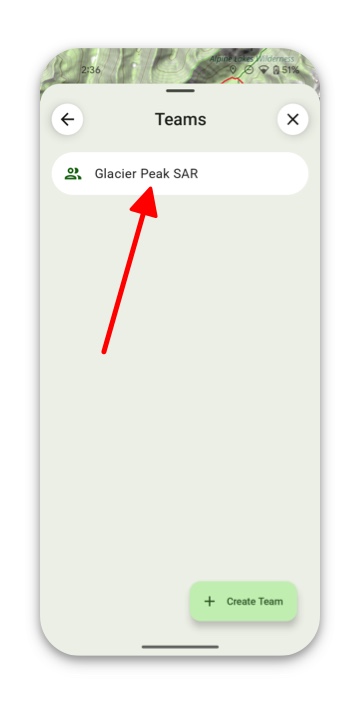
3. Then select the team you want.
4. Next tap Team Maps.
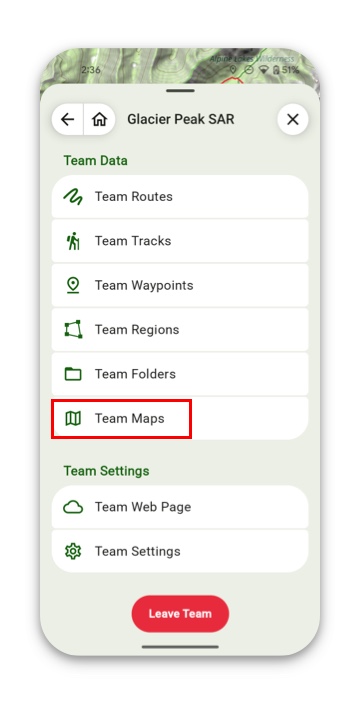
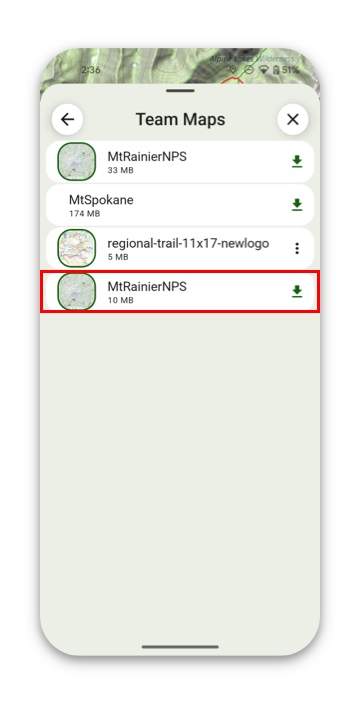
5. Then whatever data was added to the team from the iOS will be displayed here and you can download the pdf.