Saved Map Views come in really handy when you have a specific map + overlays combination that you want to come back to, or use for a specific trip. You can save that configuration and turn it back on with one tap, and you can even share it with other Topo Maps+ users!
Creating a Saved Map View:
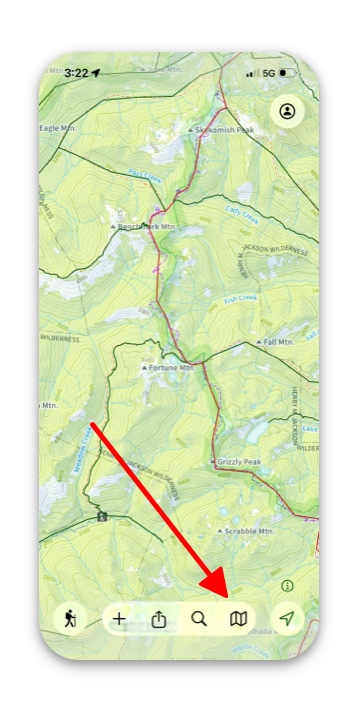
- Tap the folded map icon in the bottom right corner.
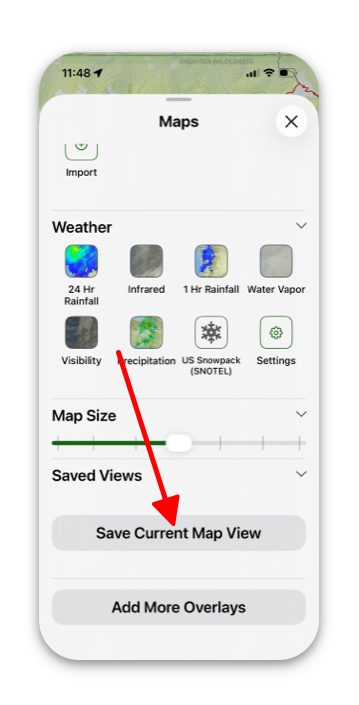
2. Select the Advanced Map button and scroll down to the bottom. Make sure the “Saved Views” is expanded, then tap Save Current Map View. This wills ave your current map configuration, and it will then show up under “Saved Views”.
3. Tapping the 3-dot icon on a saved view will give you the following options:
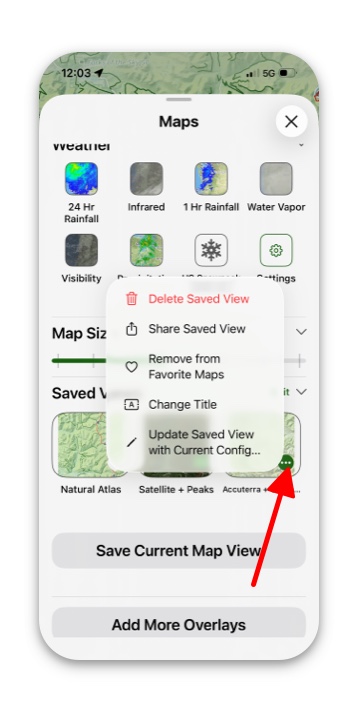
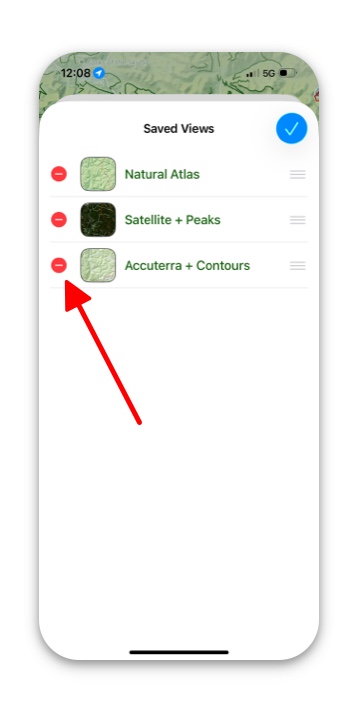
4. To rename, reorder and delete saved views, you can also tap Edit:
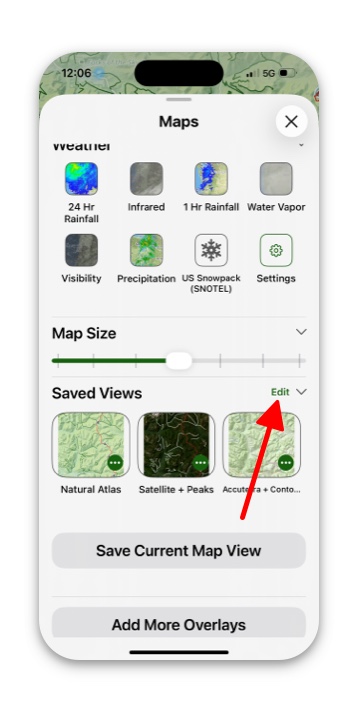
5. To rename a view, tap the existing name. To reorder your saved views, simply press and drag the indicator. You can also use the red “-“ icon to delete saved views.