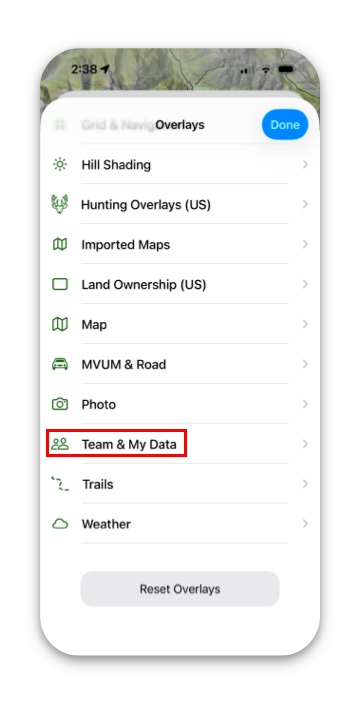
You can move any data to a Team’s data (waypoints, routes, even whole folders) and then view them within the team, or by using the Team Data overlay.
Note: Moving data to a Team takes it out of your personal data, so you will have to go into the Team’s data in order to view it.
How To Share Data:
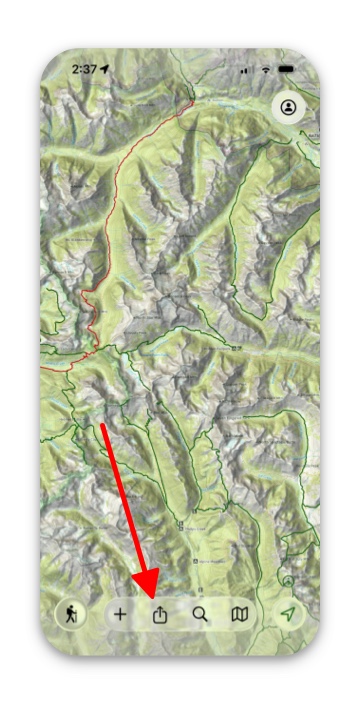
- Tap Share in the toolbar at the bottom of the screen.
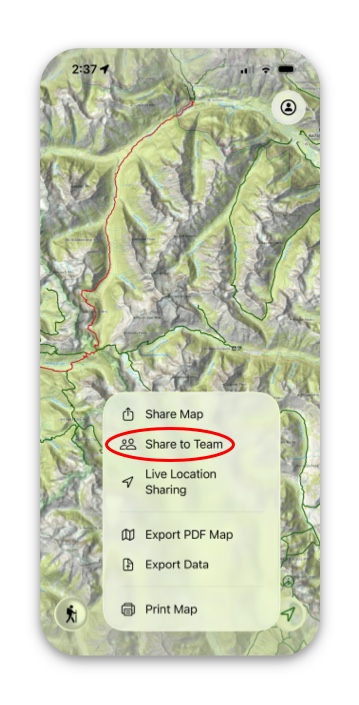
2. Tap Share to Team. If you want to share trip data, make sure you zoom out to where you can see all of it before proceeding, and then tap Share to Team.
3. Next, select which team you want to share it to.
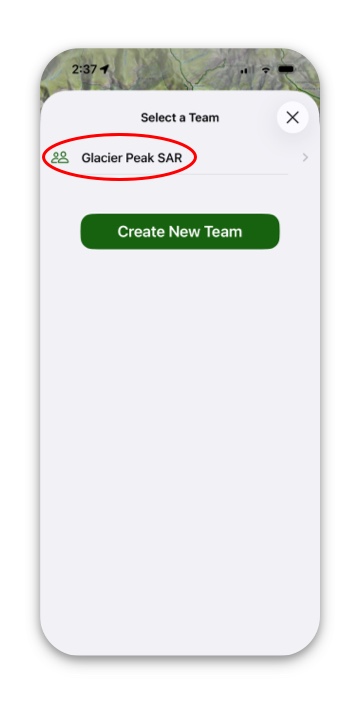
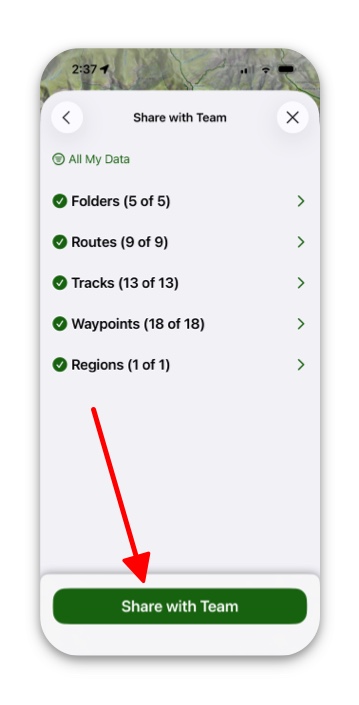
4. Then, simply choose the data you want to share, and tap Share with Team. It will default to displaying the “Visible Map on Screen” but you can tap the icon in the upper left corner to change where you want to grab the data.
Displaying Team Data:
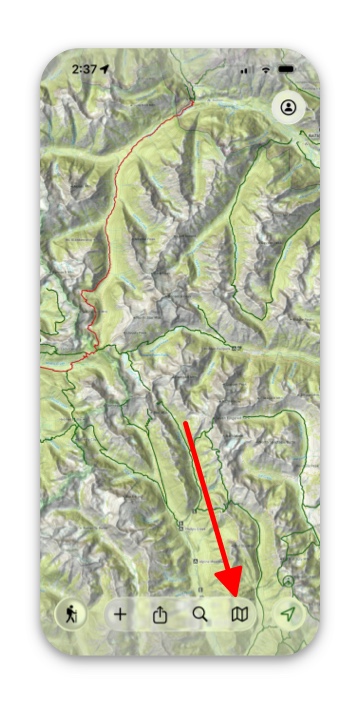
- Tap the Map button in the bottom right corner.
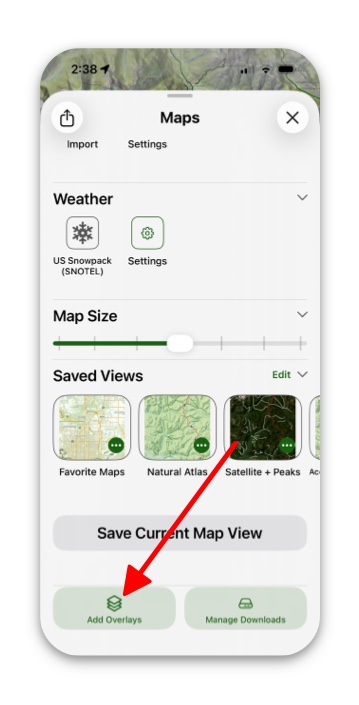
2. Scroll down in Advanced Maps to the bottom, and tap Add More Overlays.
3. Next, tap Team and My Data, and then toggle on the team you want to view data for.