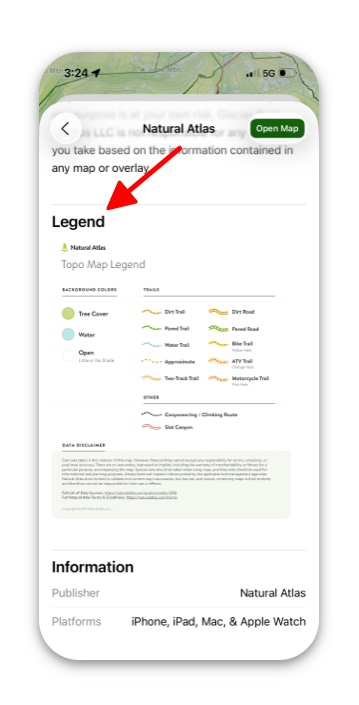
There are several ways to access legends for maps in Topo Maps+.
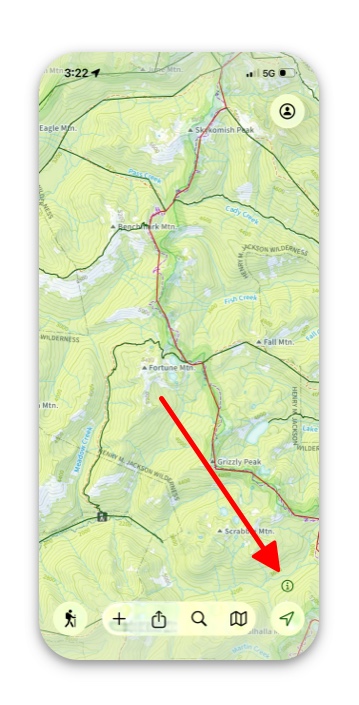
- Make sure the map you want to view the legend for is active (either as a basemap or overlay), then tap the “ℹ︎” in the bottom right corner.
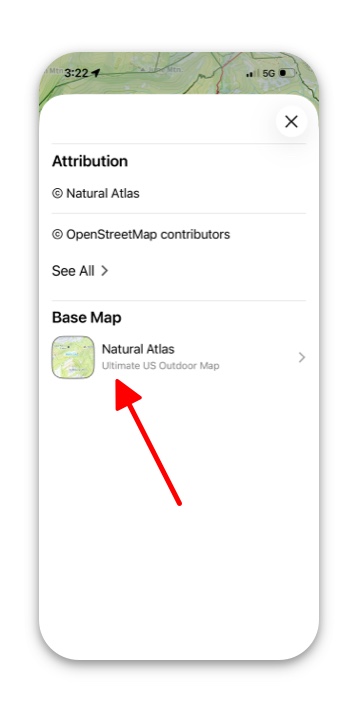
Next, the following screen will be displayed, with whatever map you are using. Tap the map that has been selected.
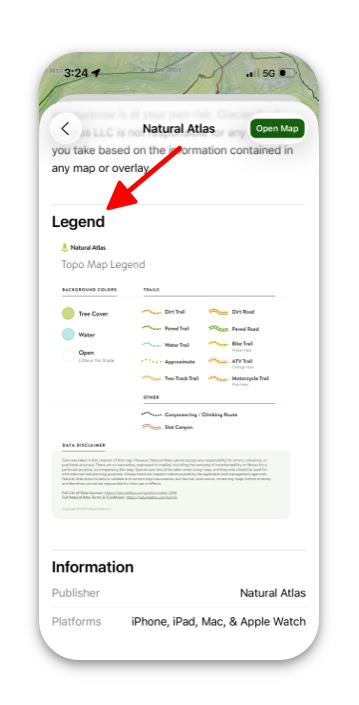
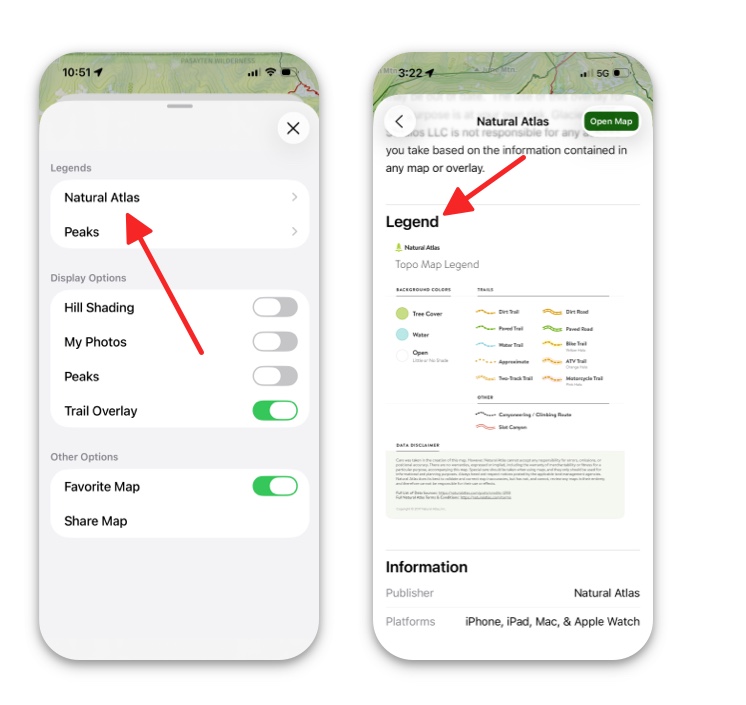
After tapping and opening that, scroll down to the bottom and the Legend will be displayed.
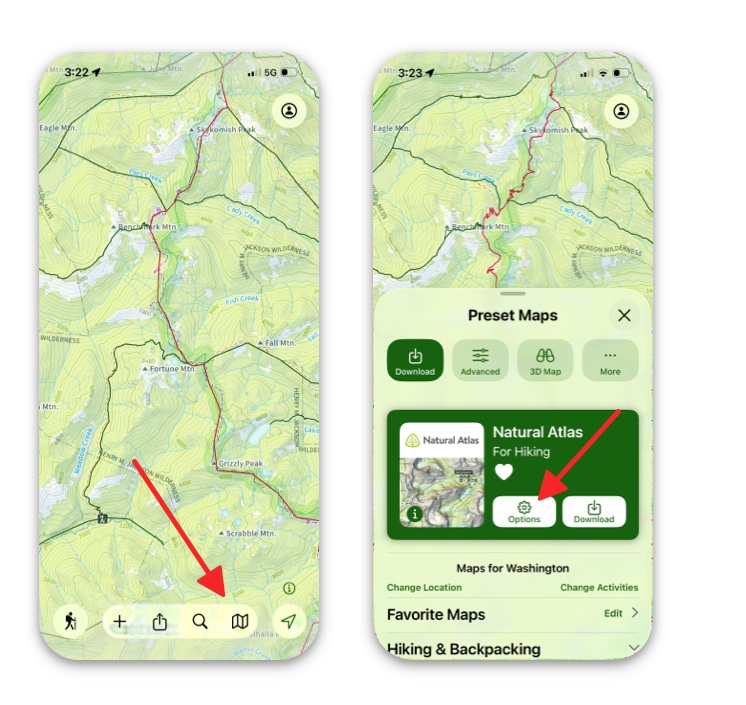
2. Here’s how to find the legend while using the Preset Map Dashboard:
Tap on the folded map icon in the bottom right corner, then tap on Options in the map menu:
Tap on the name of the map under “Legend”:
3. Here’s how to access a legend in the Advanced Map Dashboard:
In the maps menu, tap Advanced at the top and then select See All under the base maps. This will pull up all our map options. Select the map you want to view and tap it.
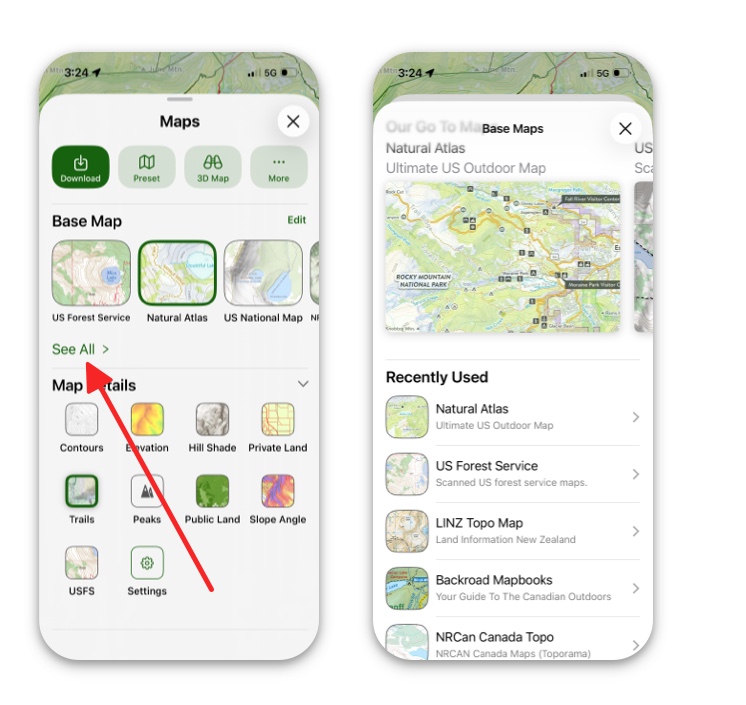
After opening the map that you chose, scroll to the bottom. There you will see that map’s legend.