There are many ways to customize your map view in Topo Maps+.
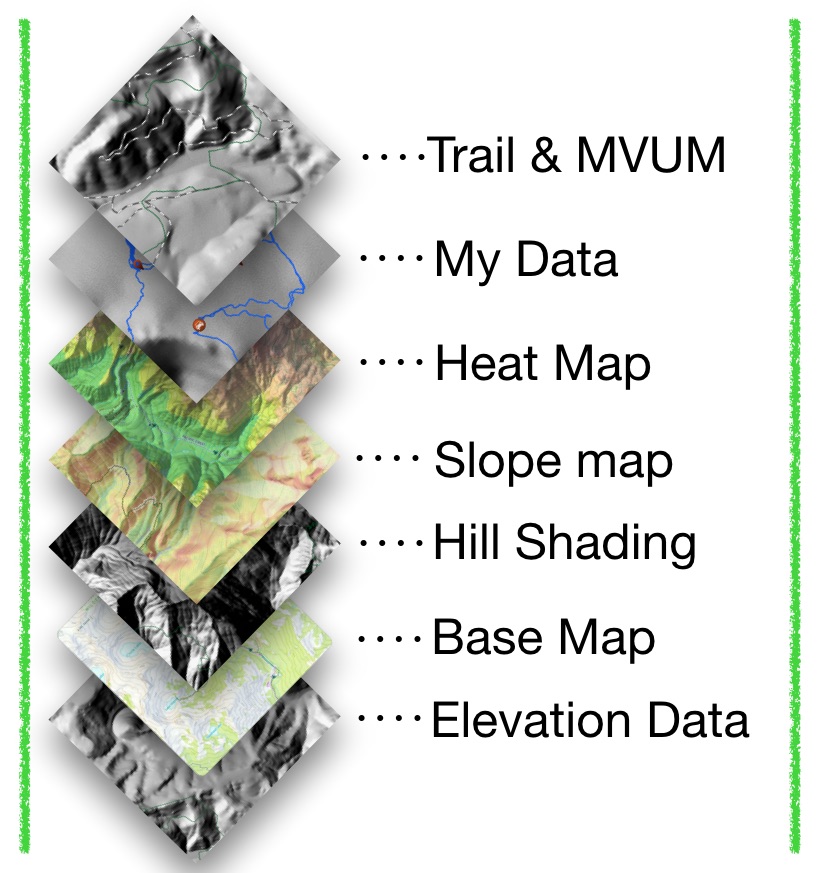
Any layer you add to your base map is called an overlay.
Each overlay adds data or graphic images on top of whatever base map you choose:
Exploring Advanced Map Features:
- Select Maps on the bottom of your screen.

2. Make sure you are in the Advanced Maps section. It will say Advanced Maps or Maps at the top. If not then press the Advanced button to go to it.

3. Similar to the preset Maps menu, you will have to select a base map.
You can customize what maps show up here by tapping the Edit button, and tapping See All will bring you to the full list of maps to choose from.
Beneath the base maps is the Overlay section, which lets you toggle overlays you have selected or are already there by default.
All the overlays you have toggled on will show up with an image, which you can then tap on to display them on the map or not. (They are active when they have a green border)

4. To add more overlays, tap Settings.

5. Next press Add More Overlays.

6. After pressing Add More Overlays, the following screen will be displayed.
This is where you can really customize your map. You can add as many overlays as you want to the overlay dashboard with easy toggling on/off.
Note: If you add too many overlays the app can slow down as it tries to render too may layers at once. The dashboard will display a warning if too many overlays are toggled on.

7. When you tap an overlay in the overlay settings menu, you will see configuration options. If Blend Into Map Base is toggled for an overlay, it will set in to the base map so that the maps and the overlay interlock visually. In most situations, this will be easier to read the map if this is toggled on.

8. Once you have a configuration you like, scroll to the bottom of the Advanced Map page and save it!
