
A few years ago, when Apple first announced the Apple Watch I was super excited. The idea of being able to leave my phone in my pack and quickly check maps on my watch was tantalizing.
I couldn’t wait to try it out.
But when I got on the trail, this is what I saw, endless spinning, spinning, spinning. 🤦♂️
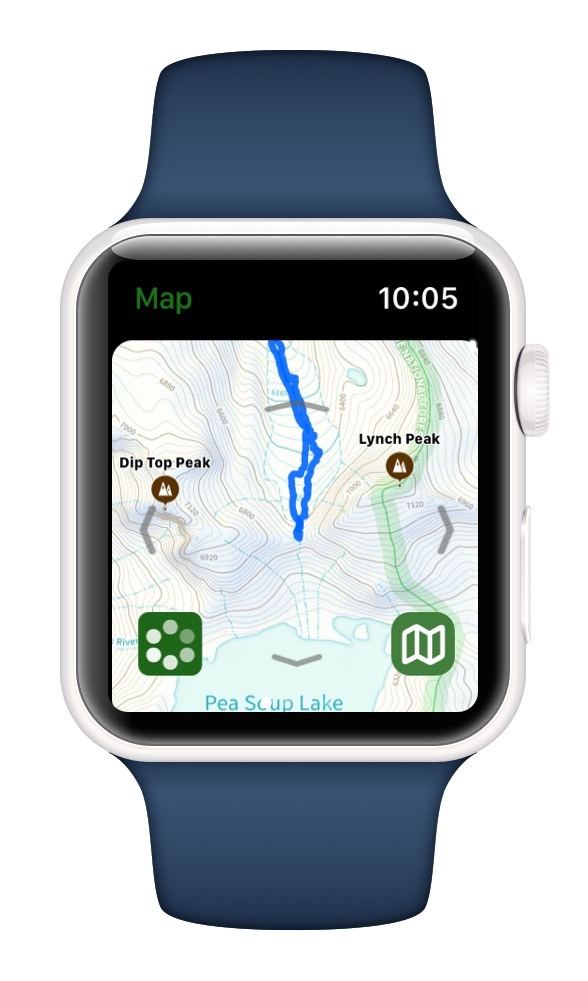
I would have to hike with my wrist held up for 2 minutes before my watch had a GPS signal and could show me my position. Needless to say, I would trip, misstep, and stumble along the trail if I kept those antics up.
Honestly, it was a terrible experience. 😡
If I recorded my workout on the watch, then I would get my position immediately, but the watch couldn’t even handle a day of hiking, let alone a multi-day backpacking trip at that time.
By summer 2021, I didn’t even bother taking my Apple Watch on any of my backpacking trips anymore.
But…Something big happened…
Apple, released the Series 7 watch last fall. Wow! It was a game changer for me this summer! The battery life is massively better.
That, along with the latest Topo Maps+ Watch update, it was a joy to use on my recent 4 day backpacking trip in the Alpine Lakes Wilderness.
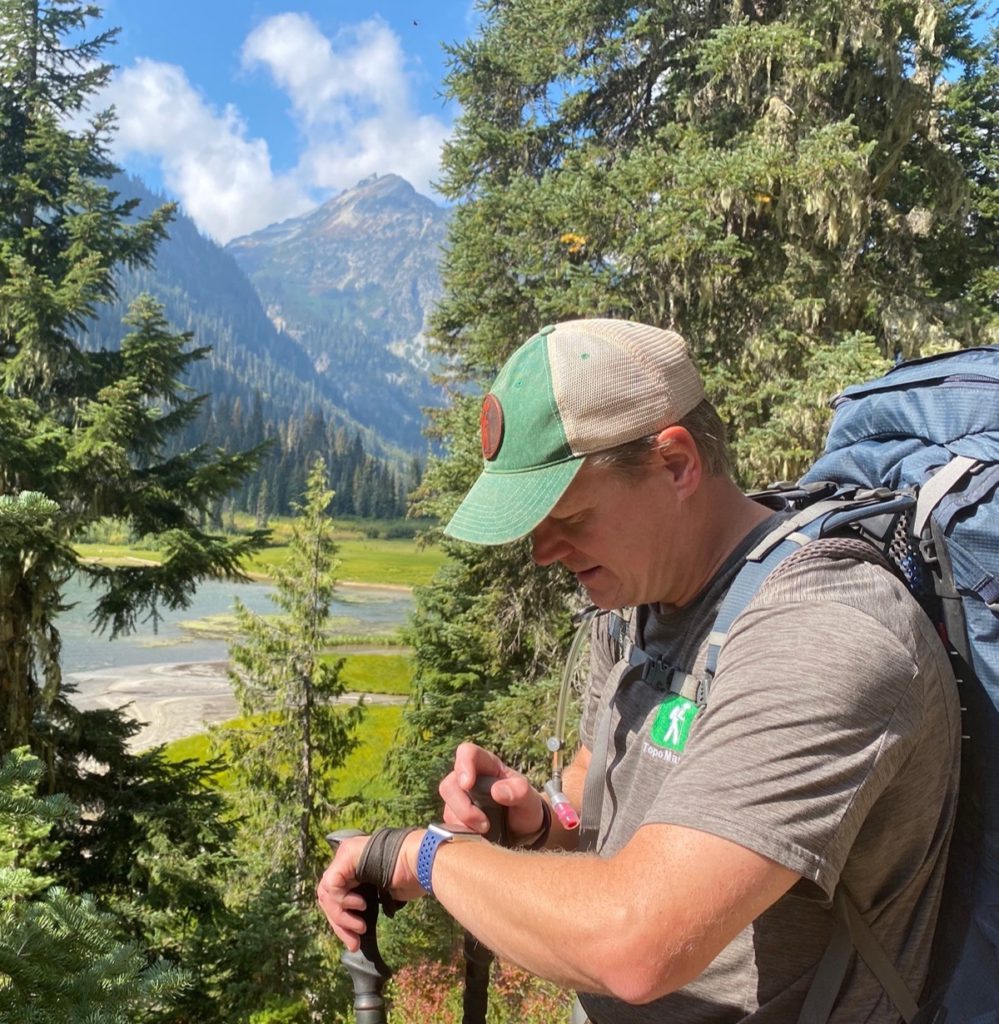
There are a couple watch setting changes you’ll want to make to extend your battery life along with this update that I’ll share below:
- Turn off always on display.
- Download maps to Topo Maps+ on your watch. (YES, we finally have this!!)
- Turn on airplane mode.
- Turn on theater mode. (That way your screen won’t come on every time you lift your arm.)
- Use the power saving mode for the apple workout. It doesn’t record your heart rate as frequently.
Then, you will want to record your tracks on the watch and/or record your workout on your watch. Basically, you want to have your watch constantly updating your GPS position. On my last backpacking trip I recorded both my hike in the Apple Workout app and my tracks in Topo Maps+ on my Apple Watch.
Now to the update we just completed…
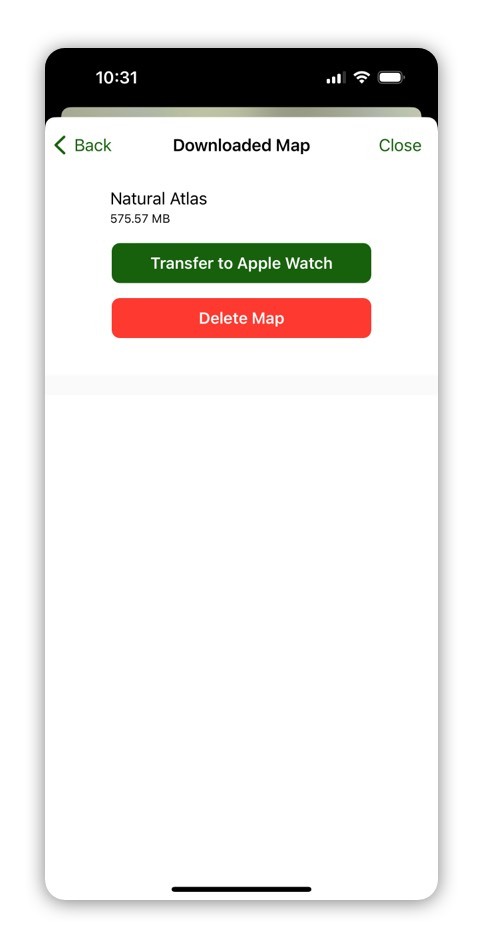
Your Topo Maps+ watch app is now able to be untethered from your iPhone with the ability to transfer downloaded maps to your watch directly from your iPhone!
- Select download on the toolbar on your iPhone.
- Select Manage downloaded maps.
- Select a map.
- Transfer to your watch.
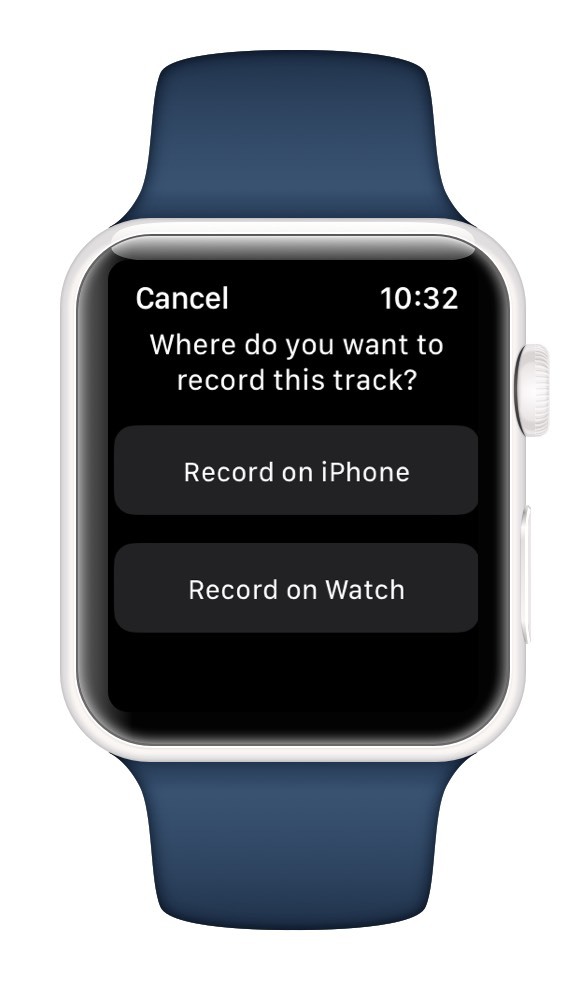
This should have been done a while ago, but we finally added the ability to record a track directly on your watch.
Before heading out into the backcountry it is important to check your gear and make sure everything is working. This has always been a problem on the Watch app.
BUT, NOT ANYMORE!!
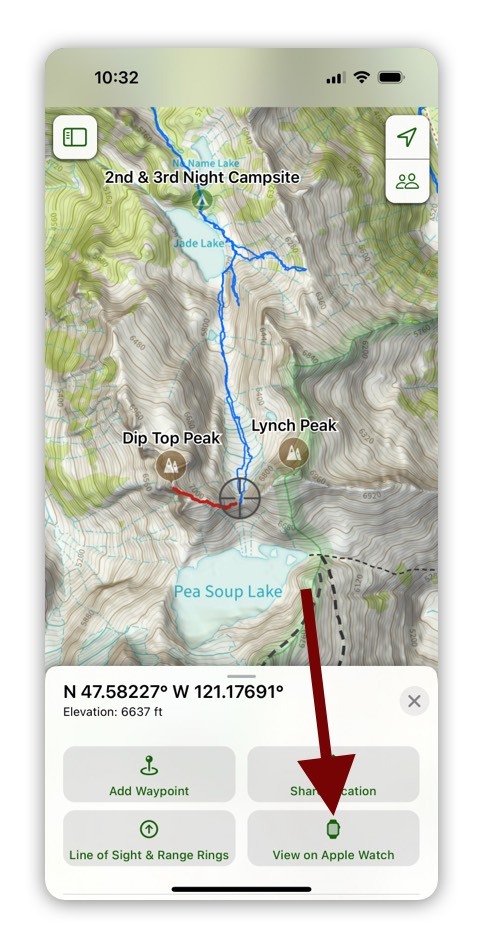
You can select a location on the map on your iPhone with tap and hold. If your Apple Watch is paired to your iPhone, you will see the option to view that location on your watch. So, now you can see what the maps will look like before you even head out and verify it all works correctly!
All in all, I’ve been pleased with the changes Apple has been making to the watch and I’m even more excited to see what the Apple Watch Ultra will bring to the game!